Showing posts with label How-Tos. Show all posts

Tuesday, November 12, 2013

f0r}P3+3]sS@k#!:
Guard Your Online Info with a Strong Password


Earlier this fall I mentioned that I'd spent part of the summer reading all the detective/mystery novels by Michael Connelly. One of the novels, The Scarecrow (borrowed from the DeKalb Public Library's ebook collection), features a very, very bad guy who is also a computer security expert.   I was alarmed at how easily this bad guy was able to break into various characters' email and bank accounts, destroying their finances and careers by altering and deleting vital information.   My passwords have been reasonably ok, but since The Scarecrow, I've been going through and upgrading all my passwords, starting with email, and anything that has financial information involved (bank, PayPal, Amazon.com, mortgage company, iTunes, etc etc).

 AARGH!! How can anybody come up with strong, unique passwords for every single dad-blamed website (because, of course, you have to have a username and password for EVERYTHING, from PiBites to updating your directory information, all on different platforms with different accounts.)

Fortunately, Gwyneth Jones, The Daring Librarian, has come up with a nifty comic tutorial encapsulating all the sage advice on creating unique, strong AND rememberable* passwords for all your sites.  In a nutshell:
  • 1. Make your password at least 12 characters long.
  • 2. Make it complex -- use a phrase (not just a dictionary word) with special characters,
    numbers and both upper and lower case letters
  • 3. Add to your main passphrase characters that make it unique for each site (for instance, the
  • first three letters of the site name, backwards) so you have to remember only one complicated phrase, and the site reminds you of the rest.
     
Can you guess the passphrase in this post's title? It's  f0rP3+3sS@k#!  (for petes sake!).  Vowels are from the number line, spaces are brackets }, and the "t" was replaced by a plus sign.  It looks completely random, but you and I know the secret to remembering it.

The complete tutorial is in the graphic below, and you can download a higher-resolution printing copy of the file from Gwyneth's Flickr site. Post it on your office bulletin board or next to the computer  -- but f0r}P3+3]sS@k#! don't write your passphrase on it!


Of course, you also have to figure out all the zillion sites where you've had to set up accounts over the years, but I can't help you with that.

Check out the rest of The Daring Librarian's 10 Super Geeky Tips for the New Year on her blog.

Are you using lame passwords?  Do you have any additional password tips?  Share in the comments!


* "memorable" is for dates and fabulous novels. "Rememberable" -- able to be remembered -- is a much better for this purpose :-)

Monday, October 7, 2013

Creating Powerful PSAs

For Magnus' Biology 2 class


A PSA ("Public Service Announcement") is a "message in the public interest disseminated by the media without charge."  In other words, it's an advertisement with information for the general public, run for free on TV, radio, billboards or magazines.

What the definition doesn't say is that a PSA has to be:
  • short
  • powerful
  • important

Do you recognize any of these images?


They're some of the most famous PSAs of the last century.

How about this recent radio PSA from the CDC -

Tips for creating a great Public Service Announcement ---
  • Know your GOAL - to get people to take a specific action (stop littering, wash hands, stop texting while driving)
  • Talk about RESULTS - a beautiful countryside, not getting bird flu, not causing a car crash)
  • Use informal EVERYDAY LANGUAGE (not lit writing or police speak)
  • Use EMOTION
  • Make it PERSONAL
  • Stick to ONE MESSAGE
  • Remember that SOUNDS CREATE PICTURES.  If you use sound effects or music, it must make the right picture in the listener or viewer's mind.
  • Keep it SHORT.  30 seconds is very common. 
  • IDENTIFY the sponsoring organization. 


Resources

How to Create the Perfect Public Service Announcement (Center for Digital Education)

How to Write a Public Service Announcement (pdf, from Kansas Association of Broadcasters)

Public Service Announcements (Wikipedia article)

Distracted Driving video PSAs (The Hill)

Sound Effects clips

Sound Bible (wav & mp3 files)
FreeSound (wav files)
Big Sound Bank (wav, aiff, mp3s; a French site)
FreeSFX (mp3s)

Wednesday, November 12, 2008

2 Things I Bet You Didn't Know You Could Do . . .

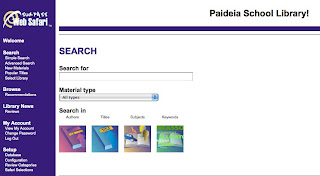
on Surpass Web Safari, the Paideia Library's online catalog.

1) Post your own Book Reviews

Love your summer reading choices? Want to recommend Reading Bowl books to others?? The page for every item in the catalog has a place for you to write and post a review.

Search for an item

• Scroll down on the page until you see Patron Reviews.
Posted reviews (if there are any yet) will display, along with a link for you to post your own.

• Complete the review form and submit it.
After one of the librarians approves the review, it'll appear on the item's page for everyone to see.

2) Check Your Account Online

Just like the big libraries!

• First you'll need to contact one of the librarians to get your initial login password (you'll be able to change it later)

• Go to Surpass Web Safari and click on the Login link at the bottom of the left sidebar. Enter your name (or your library card number if you know it) and password.

• When you're successfully logged in, you will see your name next to the Log Out Link in the horizontal purple bar across the top of the screen.

• You can now change your password, check what items you have checked out, and renew any overdue items. Most items have a renewal limit of 2 times.

Like these features? Let us know! Have any trouble with them, or have any suggestions for more cool stuff? Let us know that too!

I hope to hear from you soon.